A PDF is usually large for one of six reasons: its pages are scans, it holds photos at full camera resolution, it was merged from files that each carry their own copy of the same images, it embeds whole fonts, it has kept its edit history, or it carries hidden extras such as attachments. The first three cause most of the problems we see, and each one has a different fix, so it pays to find the cause before you try to shrink anything.
We built test files for each cause and ran them through our own tools to see what actually happens. The numbers below come from those runs.
First, a quick diagnosis
Two checks tell you most of what you need to know, and neither takes a minute.
Divide the size by the number of pages. Drop the file into the PDF page counter, which lists the page count and the file size side by side. A page of ordinary typed text costs a few kilobytes. In our tests a 5-page text document came to 12 KB, under 3 KB a page. If yours is running at hundreds of kilobytes or several megabytes per page, there are images in it, whether you can see them or not.
Try to select a word. Open the PDF, press Ctrl+F (Cmd+F on a Mac) and search for a word you can see on the page. If the search finds nothing, or you can't highlight a single line of text, the page is a picture of text. That's a scan, and it's cause number one.
| What you notice | Most likely cause | Jump to |
|---|---|---|
| Large, and the text can't be selected | Scanned pages | 1 |
| Large, text selects fine, has photos in it | Full-resolution photos | 2 |
| Much bigger than the files you combined into it looked | Duplicated images from merging | 3 |
| Large, text only, no pictures at all | Embedded fonts | 4 |
| Grew each time you edited and saved it | Kept edit history | 5 |
| None of the above fits | Hidden extras | 6 |
1. The pages are scans
A scanner doesn't read words. It photographs the page, and a PDF made from a scan is a stack of photographs, one per page. A photograph of a page of text is enormous compared with the text itself.
To put a number on it, we made the same five pages of text two ways: once as a normal text PDF, and once as a 300 dpi colour scan, which is a common scanner default. The text version was 12 KB. The scanned version was 7.2 MB, around 600 times bigger, for pages that read exactly the same.
Most scanners and scanning apps let you choose settings that matter far more than any compression afterwards. Grayscale instead of colour, and 200 dpi instead of 300 or 600, cut the size a lot for ordinary documents. If you're about to scan something, change those first.
If the scan already exists
The fix is to redraw each page at a sensible resolution and save it as a lighter image. That's what the rasterise method in our PDF compressor does. Here's what it did to the 7.2 MB scan at three settings:
| Setting (quality, resolution) | Result | Smaller by | How it looked |
|---|---|---|---|
| 0.75, 2x (about 144 dpi) | 1,268 KB | 83% | Hard to tell from the original |
| 0.6, 1.5x (about 108 dpi, the default) | 701 KB | 90% | Clear, with faint smudging around letters when zoomed in |
| 0.5, 1x (72 dpi) | 279 KB | 96% | Readable on screen, visibly soft; not one to print |
These are the same few lines of the first page, zoomed to 200%, so you can judge the trade for yourself:
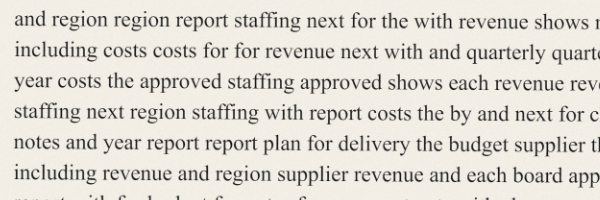
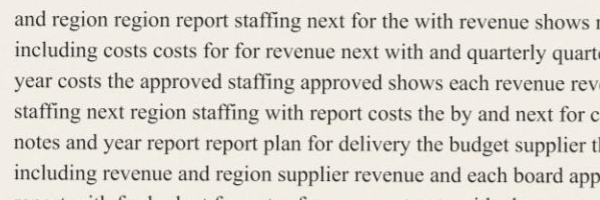
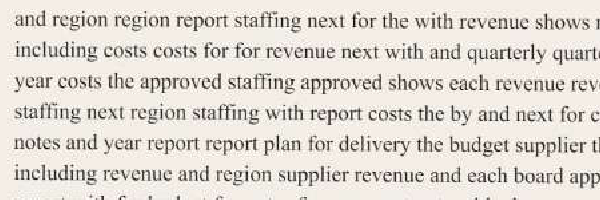
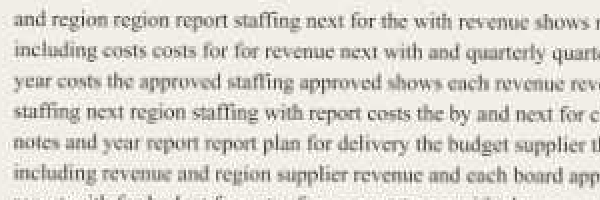
Our advice after looking at these: start at the default, and only go lower if you have a hard size limit to meet, such as an upload form that refuses anything over 1 MB. If the document will be printed, go up a step rather than down.
2. The photos are full camera size
A modern phone photo is about 12 megapixels, 4000 by 3000 pixels, and typically 3 to 5 MB as a JPEG. Put it into a document at the width of a page and the PDF keeps every one of those pixels, even though the page shows it at the size of a postcard.
Our test document was three pages, each with a heading, a line of text and one photo shown 16 cm wide. With the photos at full size the PDF was 12.7 MB. At that width, 4000 pixels works out to roughly 630 pixels per inch, about double what even a good printer can use.
We then resized the same three photos to 1600 pixels wide before building the document. Each photo dropped from about 4.3 MB to about 310 KB, and the PDF dropped from 12.7 MB to 939 KB, less than a thirteenth of the size. At 16 cm, 1600 pixels is still about 250 pixels per inch, plenty for screen and fine for most printing, and the text on the page stays real, selectable text.
The fix is to shrink the photos before they go into the PDF, not after. Resize them with the image resizer (1600 to 2000 pixels on the long side suits most documents), then build the PDF from the smaller copies with image to PDF. If the document comes from Word or another editor, most of them have a "compress pictures" option that does the same job on export.
Rasterising the photo document with the compressor made it even smaller (132 KB), but that's the wrong tool here. It turned the text into pixels and brought the photos down to about 108 pixels per inch. When the problem is oversized photos, fix the photos.
3. Merging duplicated the same images
This is the one that surprises people. When a program makes a multi-page document, an image that appears on every page, such as a letterhead or a logo, is stored once and reused. When you merge separate PDFs, each file brings its own copy, and the merged file keeps all of them.
We tested it with ten one-page letters, each with the same 232 KB colour letterhead at the top. Made as a single ten-page document, the file was 242 KB. Made as ten separate letters (234 KB each) and combined with our PDF merge tool, the result was 2,332 KB, nearly ten times the size, for exactly the same ten pages.
Our merge tool isn't doing anything unusual here. Merging keeps each page exactly as it was, and each page points to its own copy of the image. Finding identical images and storing them once needs a dedicated optimiser, which our tools don't include.
What helps:
- If you still have the originals, produce the batch as one document (a mail merge exported to a single PDF, for example) instead of merging afterwards.
- If you only need some of the pages, take out just those with the PDF splitter rather than sending the whole merged file.
- If neither works and size matters more than selectable text, rasterise the merged file. Every page is redrawn as a fresh image, so the duplicated letterheads stop counting against you.
4. Whole fonts are embedded
A PDF usually carries the fonts it uses, so it looks the same on every computer. Most programs embed only a subset: just the letters that appear in the document. Some embed the entire font, every character in it, and that adds up, especially with several font families or with fonts for Chinese, Japanese or Korean, which contain tens of thousands of characters and can run to many megabytes each.
You'll suspect this when a PDF has no pictures at all and is still
hundreds of kilobytes or more. To confirm it, open the file's properties
in your PDF reader (in Adobe Reader it's File > Properties > Fonts).
Subset fonts appear with six random capital letters in front of the name,
like ABCDEF+Calibri. Fonts listed without that prefix, and
marked as embedded, are usually there in full.
The fix happens where the PDF is made. In the export or print-to-PDF settings, look for an option to embed only the characters used, or to subset fonts, and export again. We haven't measured this cause ourselves, because the fonts on our test machine aren't ones we can redistribute in a test file.
5. The file has kept its edit history
PDF editors often save changes by adding them to the end of the file rather than rewriting it. It's quick, and the PDF format allows it: the standard calls this an incremental update. The catch is that the old content stays in the file underneath. Delete a large image, save, and the file can stay the same size or even grow.
You'll recognise it as a PDF that gets a bit bigger every time someone edits it. The fix is to make the editor write a clean copy: in Acrobat and many others, use Save As to a new file instead of Save. Re-saving the document through the re-save method of our compressor has the same effect, because it builds a fresh file from the current pages only and leaves the old versions behind.
6. Hidden extras
A PDF can carry things that never appear on the page: attached files, page thumbnails, form data, layers from design software, and metadata. Metadata is usually small, but files exported from some design programs carry large XMP blocks.
Our compressor's re-save method drops anything the pages don't actually use, as well as the metadata. Don't expect miracles from it, though. On all four of our test files it saved less than 1 KB, because none of them carried extras to remove. It's worth a try when nothing else explains the size, and it keeps the text selectable. One thing to know: because it builds a new file from the pages alone, document-level extras such as bookmarks and attachments don't come along. If you rely on those, keep the original.
Adobe Acrobat Pro can list what's inside a file, category by category, using the Audit space usage option in its PDF Optimizer. If you have access to it, that ends the guesswork.
What compression can't fix, and can make worse
It's tempting to push every large PDF through the strongest compression you can find. Two results from our tests are worth knowing first.
A text PDF can get much bigger. We rasterised our 12 KB, five-page text document at the default settings. It came back at 874 KB, more than 70 times larger, and the text could no longer be selected or searched. Text is already about as compact as a PDF gets. Turning it into pictures only adds weight.
Rasterising is one-way. Once a page is an image, the words on it are pixels. Keep the original, and send the compressed copy only where size matters, such as an upload form or an email attachment limit.
How we tested
We didn't want to use anyone's real documents, so every test file was generated for this article, in a browser, on 27 September 2026:
- Text document: five A4 pages of typed text in a standard font (12 KB).
- Scan: the same five pages drawn as 300 dpi colour images with off-white paper, a slight tilt and scanner-like noise, saved as JPEG (7.2 MB). Real scans vary a lot with the scanner and its settings.
- Photo document: three pages, each with one 12-megapixel photo-like image (about 4.3 MB as a JPEG), then the same document with the images resized to 1600 pixels wide.
- Letters: ten one-page letters sharing a 232 KB letterhead image.
Compression and merging were done with our own PDF compressor and PDF merge tool, unmodified, in Chrome. Your files will give different numbers, but the pattern holds: scans and photos are where the weight is, and text barely registers.
PDF Compress
Make a PDF smaller with two methods, and see the real before and after size of the file.